Renewing Multiple Users in Bulk
Efficiently manage user subscriptions by renewing multiple accounts at once. This guide provides step-by-step instructions on how to renew users in bulk through the ISPCRM dashboard.
Accessing Bulk Renewal
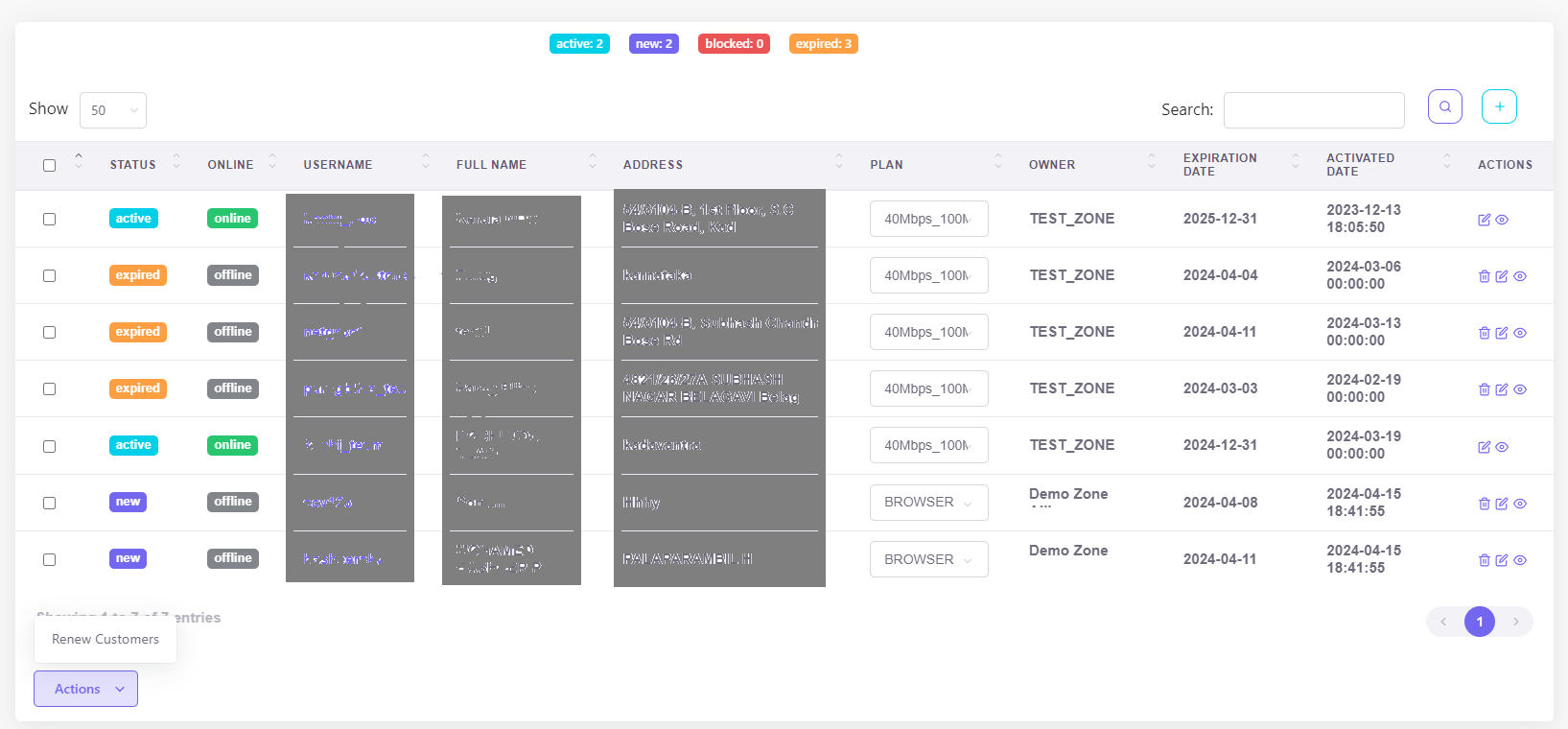
Navigate to the ‘List Users’ section of the dashboard. This page provides a comprehensive list of all user accounts, along with their status, subscription details, and more.
Steps for Bulk Renewal
-
Selecting Users: Check the boxes next to the usernames of the accounts you wish to renew. You can filter the list by various criteria, such as ‘active’, ‘expired’, or ‘new’, to quickly find the users due for renewal.
-
Bulk Actions: Once the desired users are selected, click on the ‘Actions’ dropdown at the bottom of the list.
-
Choose Renew Option: From the dropdown, select ‘Renew Customers’. This will initiate the process for the selected accounts.
-
Confirmation: A prompt may appear asking for confirmation to proceed with the renewal. Confirm the action to continue.
-
Completion: After confirmation, the system will process the renewals. A status message will confirm the successful update of the subscription terms for the selected users.
Automated Notification
Consider setting up an automated notification system to alert users of their successful renewal. This can be an email or SMS notification, depending on your ISPCRM setup and user preferences.
Managing Renewal Issues
Should any issues arise during the bulk renewal process, such as payment discrepancies or plan adjustments, refer to the ‘Tickets’ section in ISPCRM to log a support query or check for any related open tickets from users.