Revert Service
Overview
Reverting a service in ISPCRM allows administrators to roll back a user’s service to a previous state. This is particularly useful if there was an error in service application or if the user wishes to return to a former plan or service status.
How to Revert a Service
To revert a service for a user, follow these steps:
- Navigate to
Users > List Usersand select the user profile you wish to modify. - In the user profile, click the
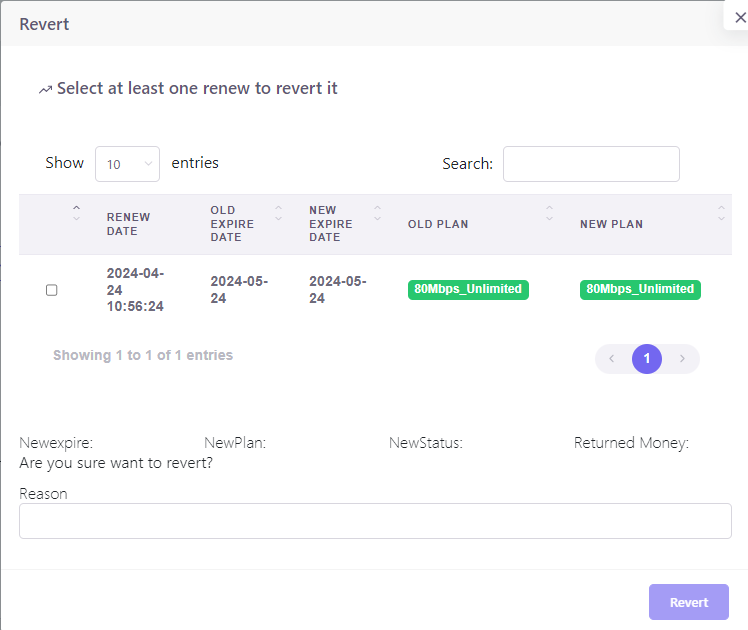
Revertbutton located near theRenewandGraceoptions. - A dialog box will appear, displaying the user’s recent renewal history. Select the renewal entry you wish to revert.
- Review the details of the selected entry, including the
Old Expiry Date,New Expiry Date,Old Plan, andNew Plan. - Specify the
Reasonfor the revert to maintain a record of the action’s rationale. - Confirm the new status and, if applicable, the amount to be returned.
- Click the
Revertbutton to apply the changes.
Approving a Revert Request
When a revert action is initiated, a notification is sent for administrative approval.
- Review the revert request in the notifications area.
- Click on the notification to view detailed information, including the username, reseller, amount returned, new expiration date, new plan, reason for revert, and action date.
- Approve or deny the revert request based on the provided information and your discretion.

Best Practices
- Ensure accurate and clear communication with users when performing a revert to avoid confusion.
- Always document the reason for reversion to maintain clear service records.
- Review revert actions regularly to identify any patterns that may indicate issues with service plans or user satisfaction.
Revert Service Summary
Reverting a service is a powerful feature that ensures customer satisfaction and operational flexibility. By following the steps outlined above, administrators can effectively manage service plans and respond to user needs efficiently and professionally.