User Groups Management
Overview
In ISPCRM, the User Groups feature enables administrators to categorize users into distinct groups. These groups can be static, with manually assigned members, or dynamic, where members are automatically sorted based on predefined rules. Grouping users facilitates the implementation of actions and policies on a collective basis, enhancing the efficiency of network management.
Creating a New User Group
To add a new user group, follow these steps:
- Navigate to the ‘User Groups’ section from the main menu.
- Click on the ‘Add New Group’ button.
- Enter the desired ‘Group Name’ and ‘Description’.
- Define group membership by using the ‘Add rule’ feature to specify criteria or ‘Add group’ to include existing groups.
- Combine rules with logical operators ‘AND’ or ‘OR’ for more complex group definitions.
- To delete a rule or a subgroup, use the ‘Delete’ option next to the relevant item.
- Click ‘Submit’ to save the new group or ‘Cancel’ to abort the process.
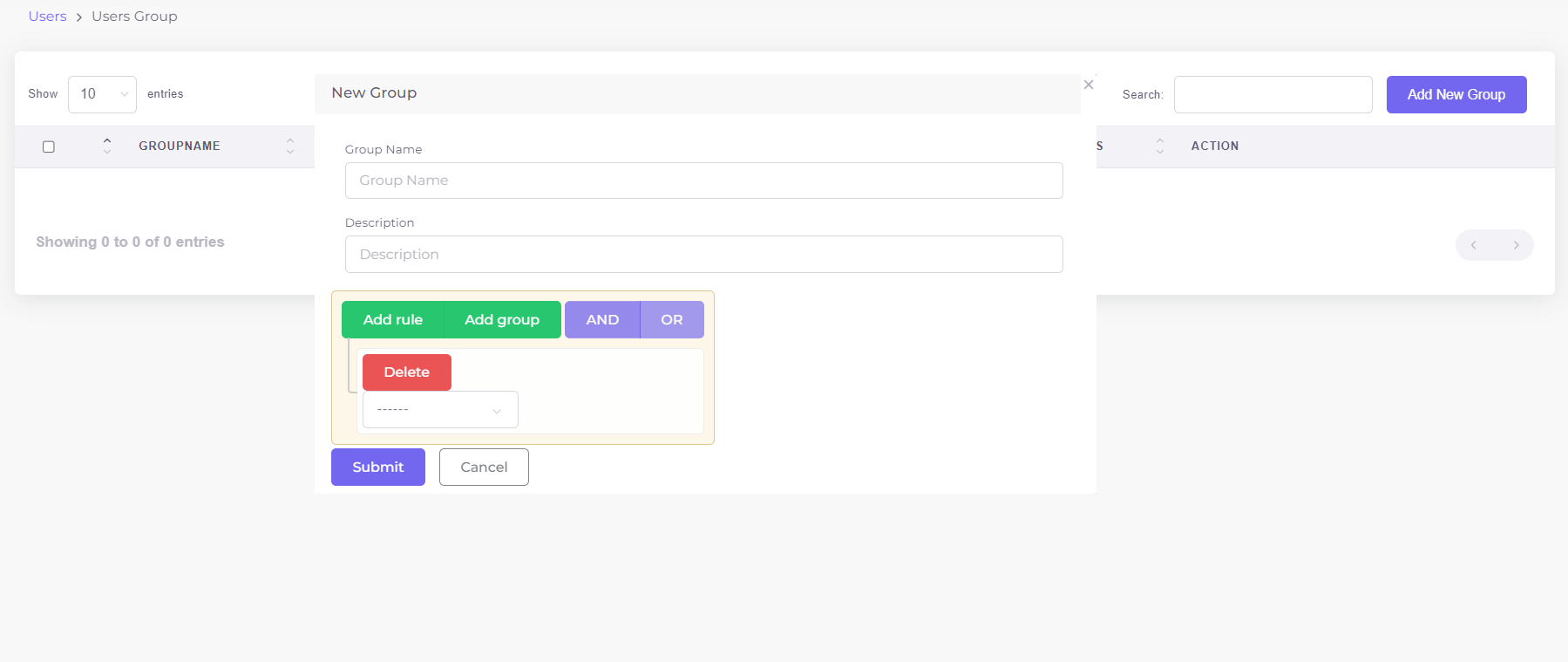
Managing User Groups
Each group’s management options include:
- Viewing member count: Shows the total number of customers and the count of those currently online.
- Applying bulk actions: Perform actions like enable/disable, delete, or apply policy changes to all members of a group.
- Editing group details: Modify the group name, description, or rules.
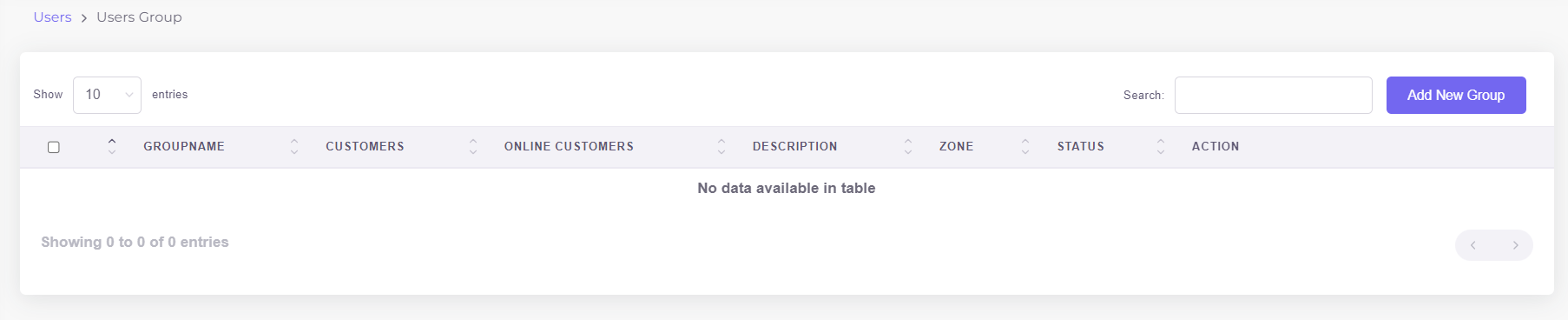
Here’s an example of an existing group:
- Group Name: Name of the Group.
- Customers: Total number of users in the group.
- Online Customers: Number of users online from the group.
- Description: Describes the group’s purpose or the basis of its membership.
- Zone: If applicable, indicates the zone to which the group belongs.
- Status: Reflects whether the group is active or not.
Utilize the User Groups feature to streamline operations, ensure consistent policy application, and manage your user base effectively.